Connect Linatora MCP Server with Claude
Access Linatora's candidate screening features directly from Claude. Follow this simple guide to connect in under 2 minutes.
Before You Begin
Make sure you have everything ready to connect Linatora with Claude
Requirements
- Active Linatora recruiter account
- Active subscription plan
- Claude Desktop app and Claude Pro plan
MCP Endpoint
Linatora's MCP server is available at:
https://app.linatora.com/mcp
Step-by-Step Setup Guide
Connect Linatora to Claude using the Connectors feature
Open Settings
In Claude, click on your profile at the bottom left to open the user menu, then click on Settings.
Go to Connectors
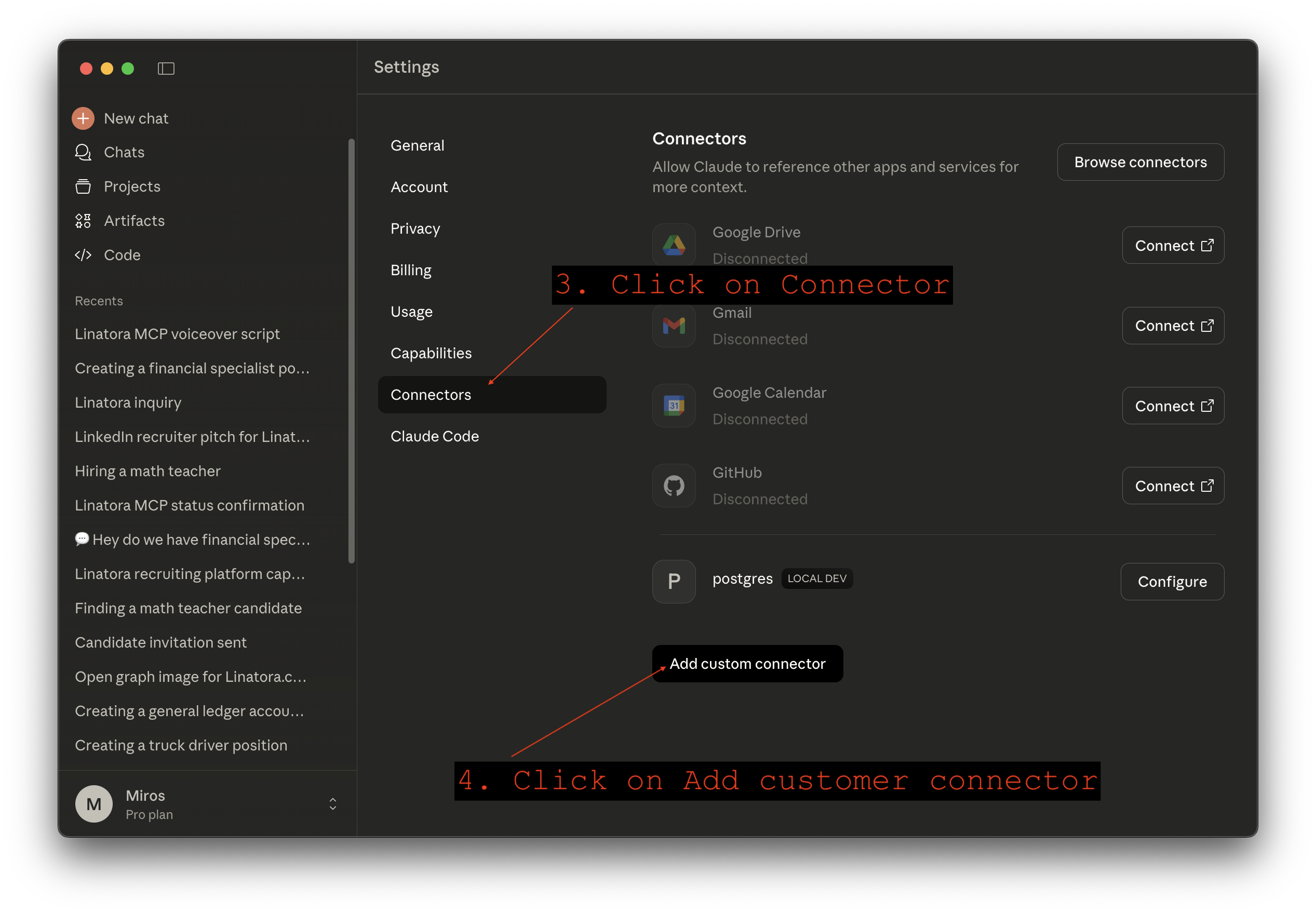
In Settings, click on Connectors in the sidebar. Then click the Add custom connector button at the bottom.
Add Linatora Connector
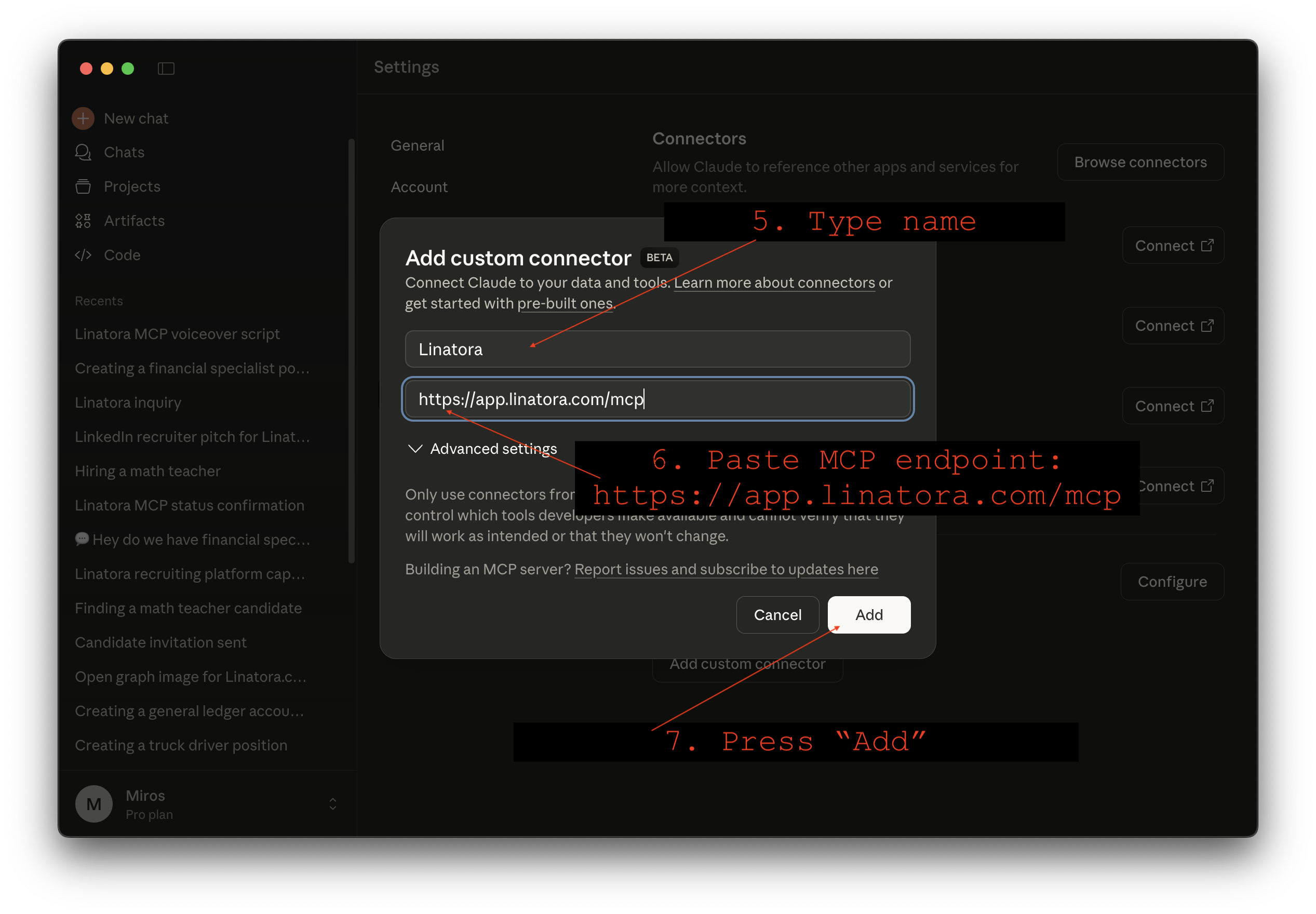
Enter Linatora as the name, and paste the MCP endpoint:
https://app.linatora.com/mcp
Then click Add.
Connect to Linatora
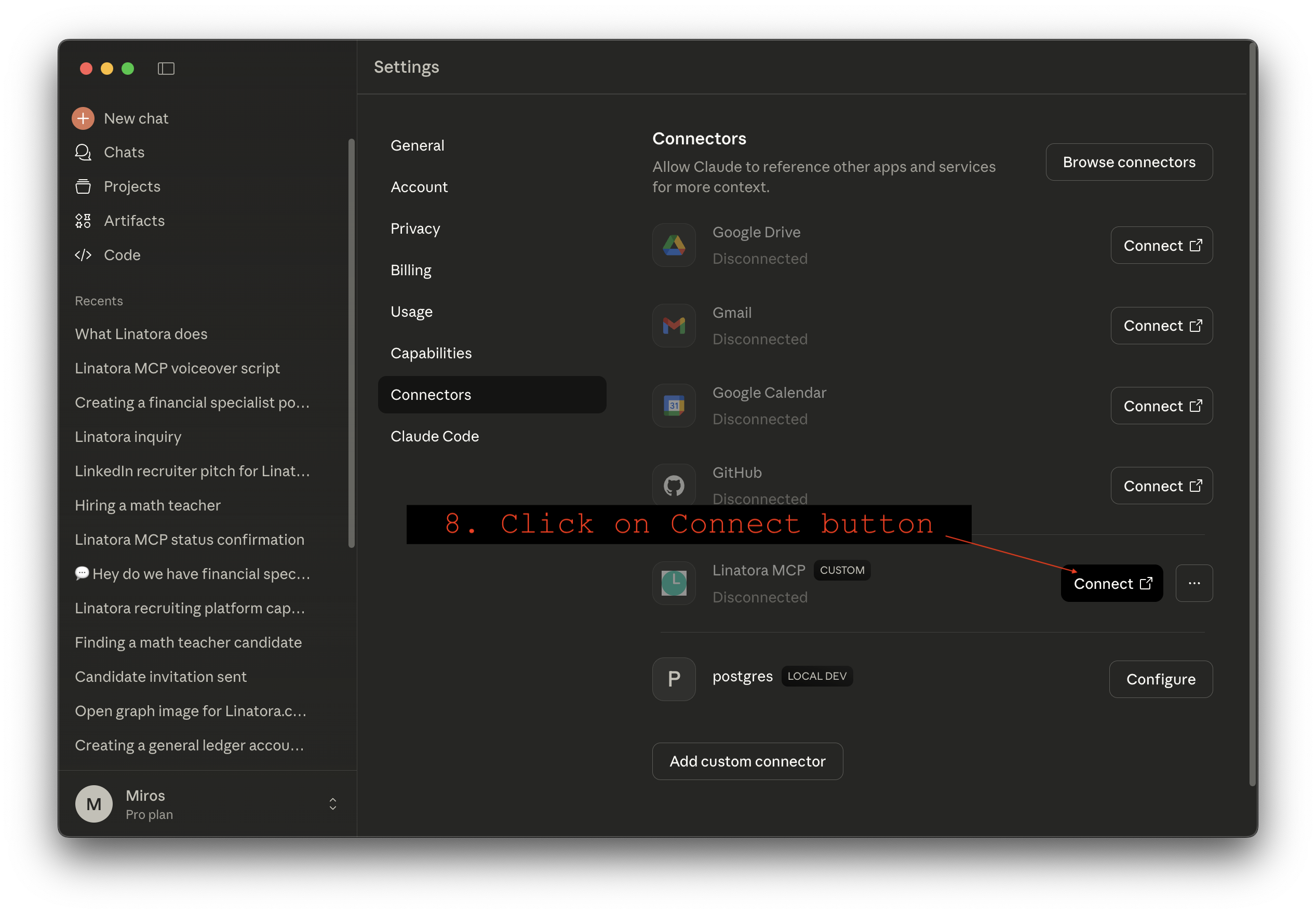
You'll see Linatora MCP appear in your connectors list. Click the Connect button to start the authorization process.
Sign In to Linatora
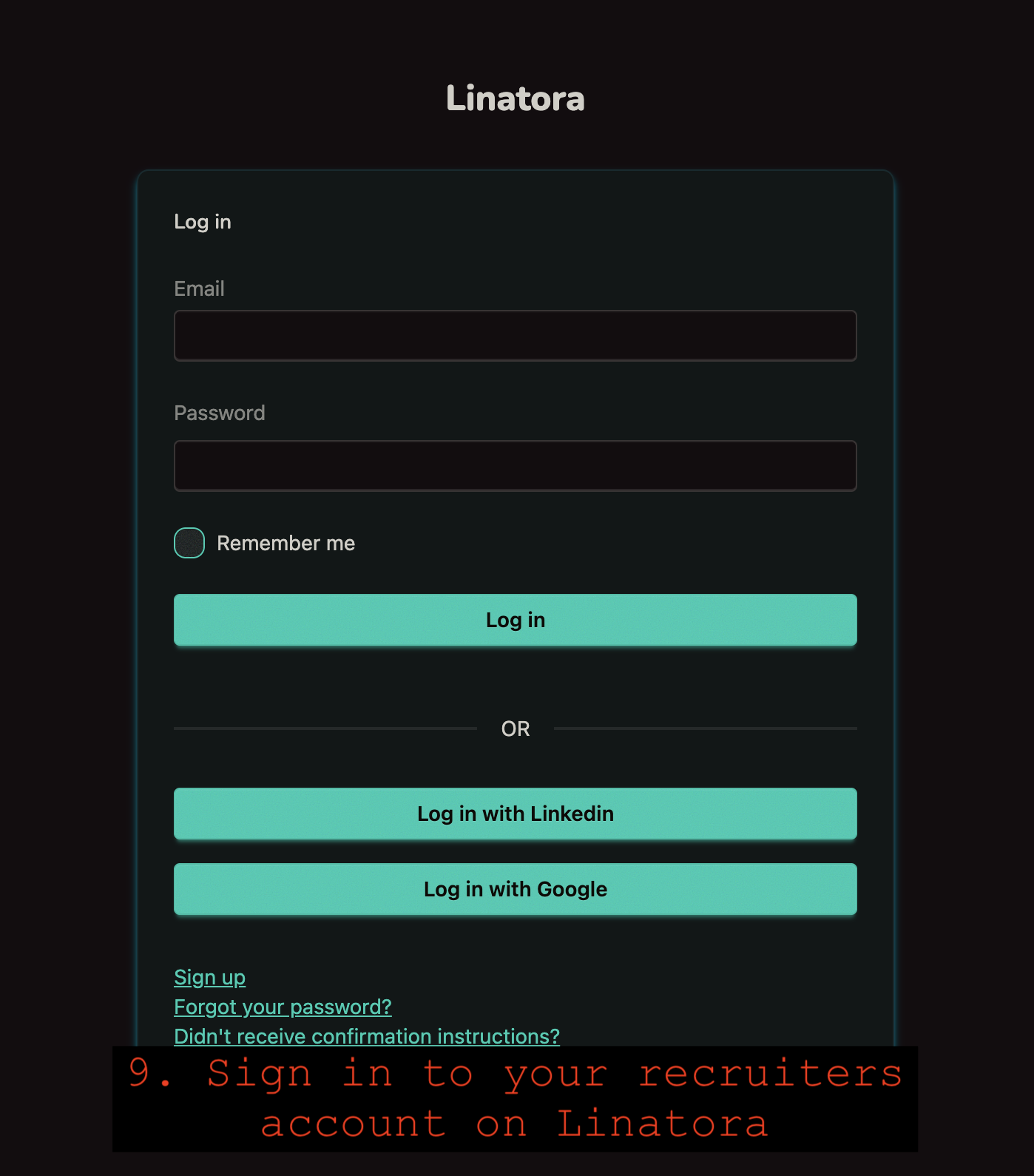
A browser window will open. Sign in to your Linatora recruiter account using your email/password, LinkedIn, or Google.
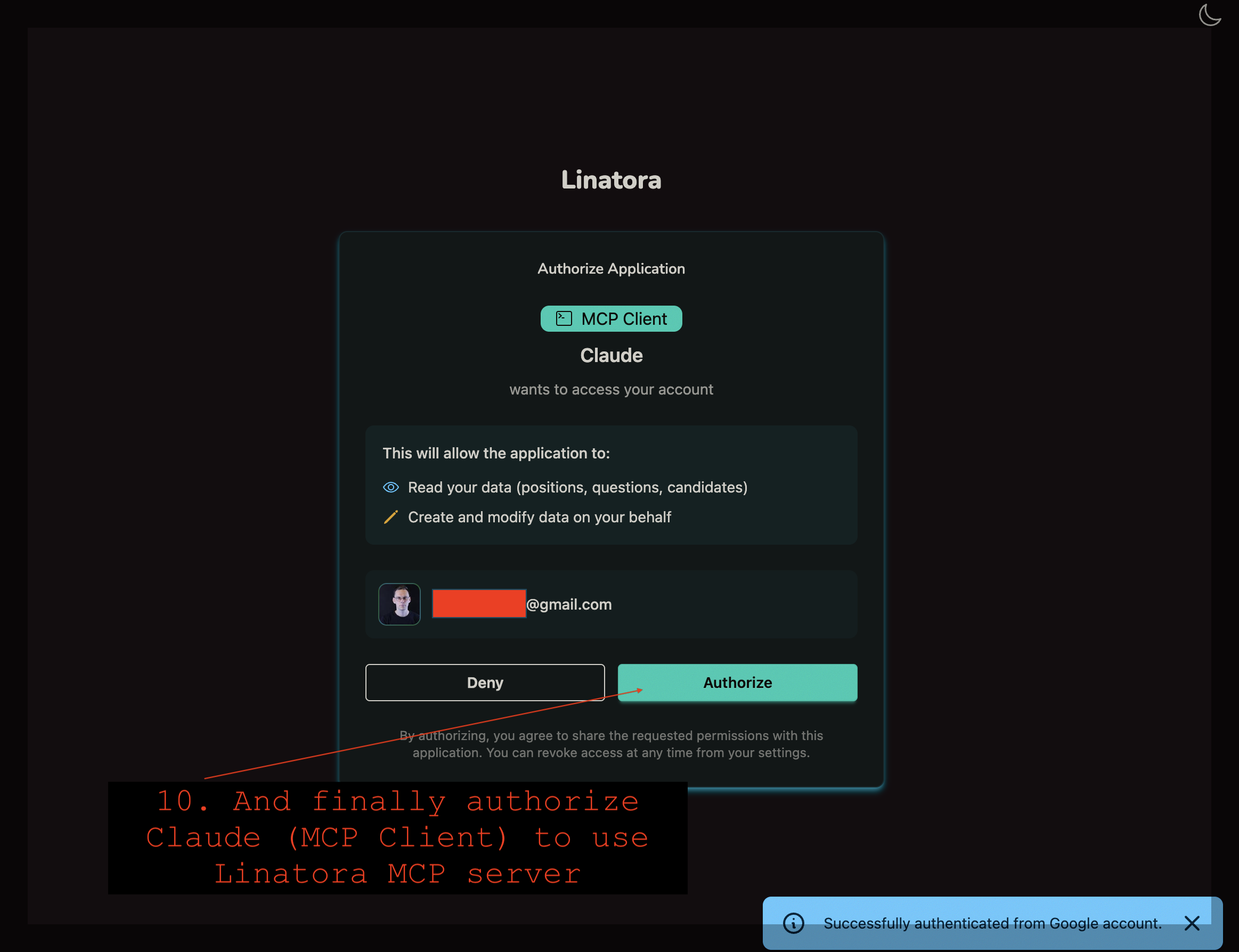
Authorize Claude
Review the permissions and click Authorize to allow Claude to access your Linatora data. You're all set!

What You Can Do with Claude + Linatora
Review Candidates
Ask Claude to show candidate profiles, video responses, and AI-generated insights without leaving your chat interface.
Manage Interviews
Create interview invites, track responses, and organize your hiring pipeline through natural conversation.
Get Summaries
Let Claude summarize candidate responses, compare applicants, and help you make faster hiring decisions.
Example Prompts
Try these commands after connecting Linatora to Claude
Search Candidates
- "Find all software engineers in my candidate pool"
- "Do I have any candidates named Sarah?"
- "Show me candidates with Finance backgrounds"
Review Profiles
- "Get the full profile for Maria from the last search"
- "Show me all of Sarah's interview responses"
- "What did she say about her leadership experience?"
Manage Interviews
- "Show me all completed interviews"
- "Which interviews are still pending?"
- "Get the video answers from John's latest interview"
Positions & Questions
- "What open positions do I have?"
- "Create a new Senior Data Analyst position"
- "Show me all leadership-related interview questions"
Assign Interviews
- "Assign Sarah to the Data Analyst interview"
- "Send the Marketing Manager interview to the first candidate"
- "Set up an interview for John with our standard questions"
Invitations
- "Send an invitation to sarah.johnson@email.com"
- "Invite my colleague as a team member"
- "Send a 7-day invitation link to this applicant"
Troubleshooting
Connection Issues
If Claude can't connect to Linatora, verify that your subscription is active and that you've entered the correct MCP URL. Try removing and re-adding the connector.
Authorization Problems
If authorization fails, ensure you're logging in with your recruiter account (not a candidate account). Clear your browser cache and try again.
Still having issues? Contact us at support@linatora.com
Related Resources
MCP Server for Recruiters
Learn more about our MCP integration and how it streamlines your recruitment workflow.
GPT Client Recruitment Tool
Explore how AI assistants can enhance your candidate screening process.
Ready to Connect Claude with Linatora?
Get started with a Linatora recruiter account and supercharge your hiring workflow